
Jobs and Customers
Create jobs, attach customers, validate addresses on a map, set geofences, pay rates, and budgets — the foundation for accurate tracking and costing
Updated August 2, 2026
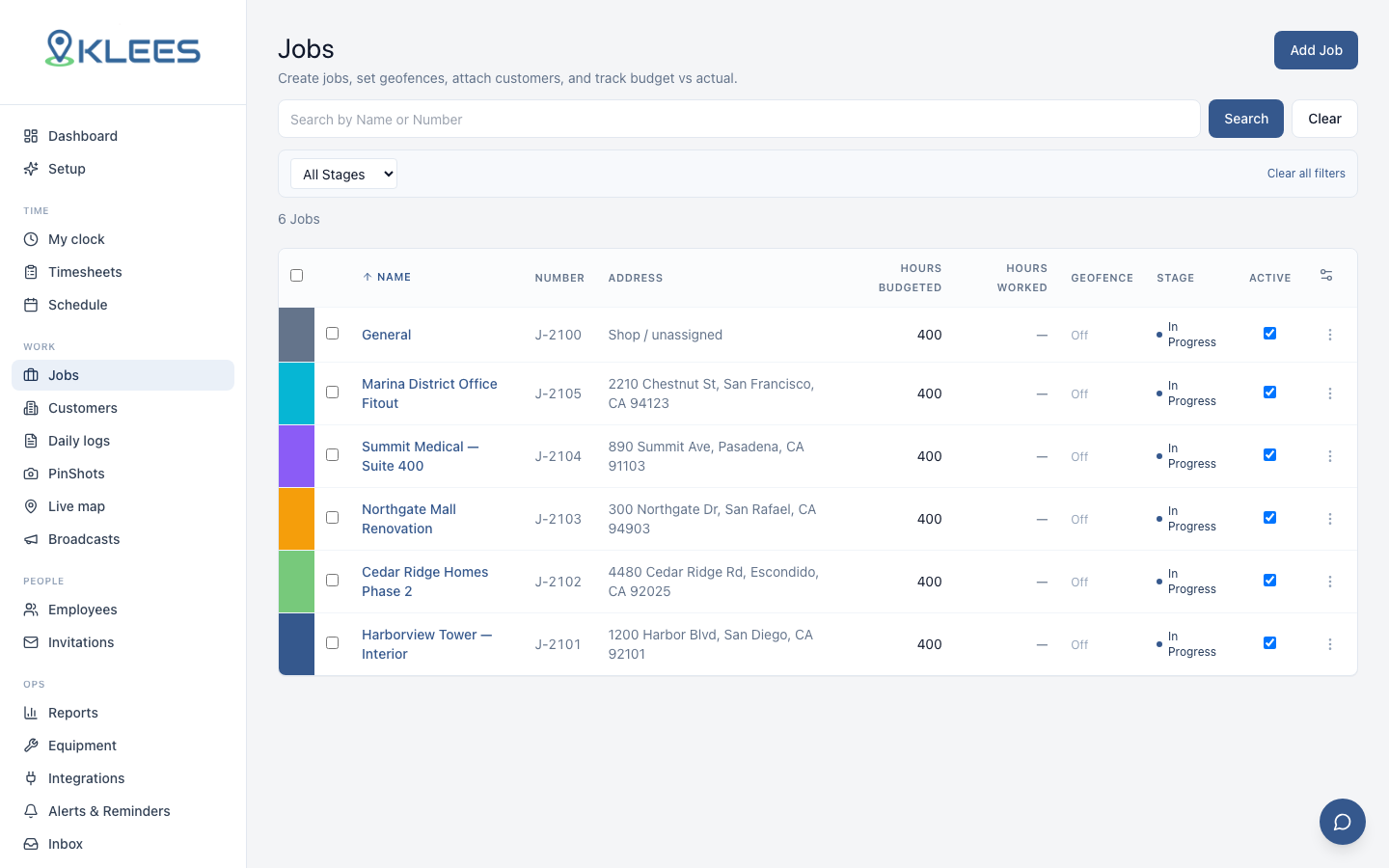
In Klees, a Job is the unit of work crews clock against. A job has a location, a geofence, optional cost codes, optional budget, and is usually tied to a Customer. Getting jobs set up well is the single biggest predictor of clean reports and accurate payroll downstream. For how jobs show up at clock-in, see Time Tracking.
Creating a job
From Jobs → New Job, you’ll need at minimum:
- Job name — short, recognizable to the crew (e.g., “Maple St Office Build” rather than “JOB-2026-0481”)
- Address — with one-click validation on a map (next section)
- Start date — and optionally an end date or expected duration
Validating the address on the map
Type the address and click Validate address. Klees looks it up with Google’s geocoder and shows the result on an embedded map:
- A pin drops at the matched location, with the geofence circle drawn at the job’s radius so you can see exactly what area counts as on-site before saving.
- ✓ Located (green) means Google matched the exact building. ⚠ An amber warning means it only matched the street — drag the pin onto the right building.
- The pin is always draggable for fine-tuning (back entrances, yards, gates). Dragging updates the geofence live.
- The address you typed is kept exactly as you wrote it — validation sets the map location, it never rewrites your text.
Tip
Confirm the circle covers where the crew actually stands — parking lot, yard, loading dock — not just the rooftop. A fence that misses the parking lot flags honest clock-ins.
Optional fields that pay off later:
- Customer (create inline or pick from existing)
- Default cost codes
- Budget in hours, dollars, or both
- Foreman or default crew assignment
- Notes and attachments — site plans, parking instructions, building access codes
Save the job and it immediately becomes available to assigned crew members in the mobile app.
Customers
A customer is a billing-level entity. One customer typically has many jobs — a commercial cleaning customer might have 12 service locations, each a separate Klees job; a construction GC might have 3–5 active builds.
Customer records carry name, billing address, contact, optional billing rate, and notes. Customer-level reports — total hours, total cost, dispute defense — pull from every job under that customer. Orphan jobs still work, they just don’t roll into customer reports.
Geofences
Every job carries a geofence — a circular boundary around the job site. The geofence does two things:
- Flags clock-ins that happen outside the boundary
- Drives the Live Map “on-site” status
To set a geofence:
- Drop or drag the pin to the exact entrance the crew uses
- Drag the radius circle to fit the working area
- Save
Klees offers two precision modes:
| Mode | Typical accuracy | Plans |
|---|---|---|
| Standard | 10–15 meters | Standard |
| High precision | 5–8 meters | Pro, Enterprise |
For most job sites, a 50-meter radius is enough. Large industrial sites and campuses often need 150–300 meters; small retail storefronts tighten to 25. The goal: tight enough to catch off-site punches, loose enough that GPS drift doesn’t flag honest workers.
Time zone override
Most companies run in one time zone and never touch this. If you work across a state line, a job can override it.
A shift is filed on the day it started, in the job’s time zone when one is set, otherwise the company’s. A Utah company with a California site would otherwise see an 11pm Pacific punch land on the next day, because it is already midnight in Utah.
Leave the field on Use company time zone unless the site really is elsewhere. Setting it per job when it isn’t needed only makes weekly totals harder to reason about.
Cost codes
Cost codes break job time into reportable categories. Common patterns:
- Construction —
01-DEMO,02-FRAMING,03-MECHANICAL,04-DRYWALL,05-FINISH - Commercial cleaning —
OFFICES,RESTROOMS,FLOORS,KITCHENS,GLASS - Delivery —
DRIVE,LOAD,UNLOAD,RETURNS - Landscaping —
MOW,TRIM,INSTALL,HAUL
Cost codes can be global (available on every job) or per-job. Each code can be tied to a GL account on the Payroll side so labor flows into the right line on your books.
Per-job pay rates
A worker can earn a different rate on a specific job — say, $5/hour more at a difficult site. Set it on the job’s Pay rates (or the person’s pay settings): the override applies only to hours clocked against that job, and labor-cost reports use the right rate per entry automatically. No override = the person’s default hourly rate.
Budgets
A budget gives the job a target — hours, dollars, or both. The dashboard shows budget vs actual in real time as crews clock against the job. When a job crosses 75% of budget, Klees sends the manager a soft alert; at 100% a harder alert; at 110% the job is flagged red on the Reports overview.
Budgets don’t block clock-in — the intent is to surface drift early, not stop work. Set budgets on every job over 40 hours, review weekly, and use the variance report to refine future bid estimates.
Job statuses
Jobs move through five statuses: Draft (not yet active), Active (open for clock-in), On Hold (paused — weather, customer delay), Completed (closed to new time, kept in reports), and Archived (older than 12 months, hidden from default views). On Hold rejects new clock-ins but keeps existing time intact.
Linking jobs to schedules
Once a job exists, you can drop shifts against it in Scheduling and Shifts. Scheduling is optional, but for predictable rotations it cuts clock-in errors and reduces no-show risk.
Best practices
Patterns that hold up across construction, cleaning, and delivery:
- Use human-readable names — crews remember “Maple St Office” better than ticket numbers
- Set geofences on day one; retrofitting means a month of un-flagged off-site punches
- Use the same cost code structure across jobs — job-by-job custom codes wreck reporting
- Archive aggressively so foremen find active jobs fast