
Reports and Exports
Run hours, job costing, and compliance reports with one-click date ranges, then export branded Excel or PDF files for payroll and clients.
Updated July 26, 2026
Reports turn clocked time into answers: who worked what, which jobs are over budget, and what needs attention before payroll. Every report shares the same runner — pick a range, run, export.
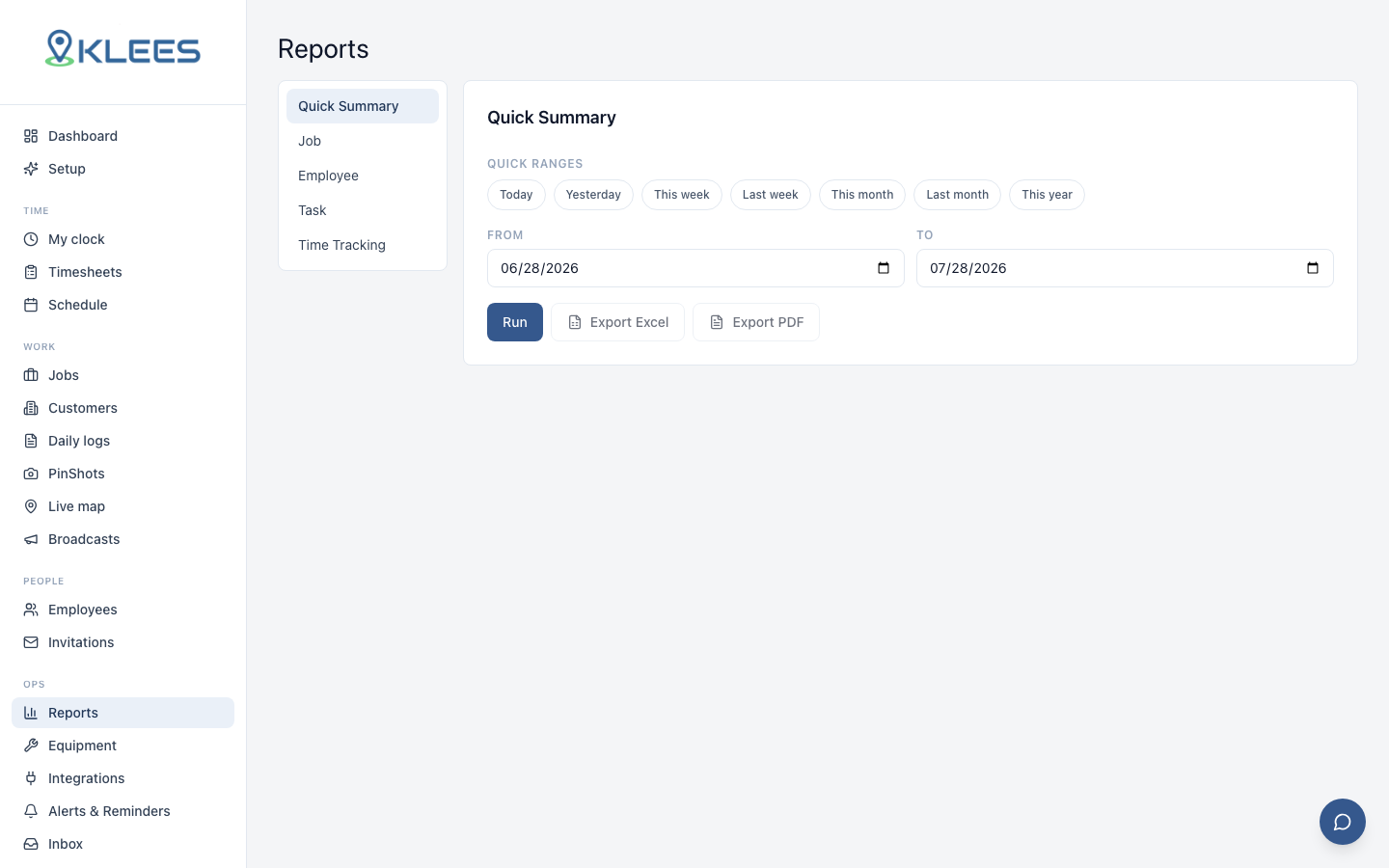
The report sections
| Section | What it answers |
|---|---|
| Quick Summary | Hours and labor cost per employee for the range |
| Job | Hours, cost, budget vs actual per job — with over-budget flags |
| Employee | Per-person detail and summary |
| Task | Hours grouped by task |
| Time Tracking | Timesheets, compliance, PTO, and timesheet alerts |
Running a report
- Open Reports and pick a section from the left rail.
- Choose a date range — either tap a quick range (Today, Yesterday, This week, Last week, This month, Last month, This year) or set From/To manually. Tapping a preset fills both dates; editing a date switches back to custom.
- Pick Employees — every report can run for all employees, one person, or any subset. Open the Employees dropdown and check the people you want; leave it empty for everyone.
- Click Run. Results render below — employees with entries, hours, rates, and labor cost, or jobs with budget status.
The Employee Detail report
Employee → Details is the printable per-entry report: for each selected employee, every entry in the range with Customer: Job, Task, In, break start/end/total, Out, and net Total, subtotaled per day, with a Grand Total and per-employee Customer: Job and Task rollups. Ideal for payroll backup, client billing disputes, and employee reviews.
Export PDF produces the full letterhead document — Klees logo, your company name, the date range and generated timestamp, one section per employee, and a footer on every page. Excel export mirrors the same layout.
Tip
Quick ranges follow your company’s local time, with weeks starting Sunday. “Last month” is always the full calendar month — no counting days on a calendar.
Exporting — branded Excel & PDF
Once a report has results, two export buttons activate:
- Export Excel — a real
.xlsxwith proper number and currency formats, sized columns, and a bold Total row. Ready for payroll or further analysis. - Export PDF — print-ready landscape with the Klees logo letterhead, report title and date range, striped rows, and a centered footer on every page: “Report generated on ⟨date, time⟩” over www.klees.app. Timestamps use your company timezone.
Both match the on-screen table exactly — what you see is what exports.
Job costing and budget vs actual
The Job reports roll labor up by job: hours and cost, actual vs the budget you set on the job (see Jobs and Customers), and a status flag — on track or over budget. The Monday-morning move: sort by variance, drill into the worst offenders, and talk to the foreman about the worst one.
Overtime
Overtime applies at approval time using your company rules — Federal (over 40 weekly), California (daily over 8, weekly over 40, double over 12), or custom per-person overrides. Overtime shows up in employee reports and raises alerts as workers approach thresholds mid-week.
Timesheet alerts report
Under Time Tracking → Timesheet Alerts: every flag Klees raised in the range — overtime, missed punches, late offline syncs, GPS anomalies — with employee, job, severity, and message. Pair it with the daily red-flags email so yesterday’s issues arrive in your inbox at 7am.
Audit trail
Every edit, approval, and export is recorded with user and timestamp in the audit log. Reports read from approved data, so what you export is what was signed off.
Note
Reports respect roles: managers see their scope, admins and owners the whole company. Ranges are capped at one year per run to keep results fast. Wiring exports into payroll? See Payroll Integrations.