Company settings
Company-wide configuration — timezone, notifications, the daily red-flags email, overtime rules, branding, and billing.
Updated August 2, 2026
Everything that applies to the whole company lives under Settings. This page tours the pieces owners and admins touch most.
Company timezone
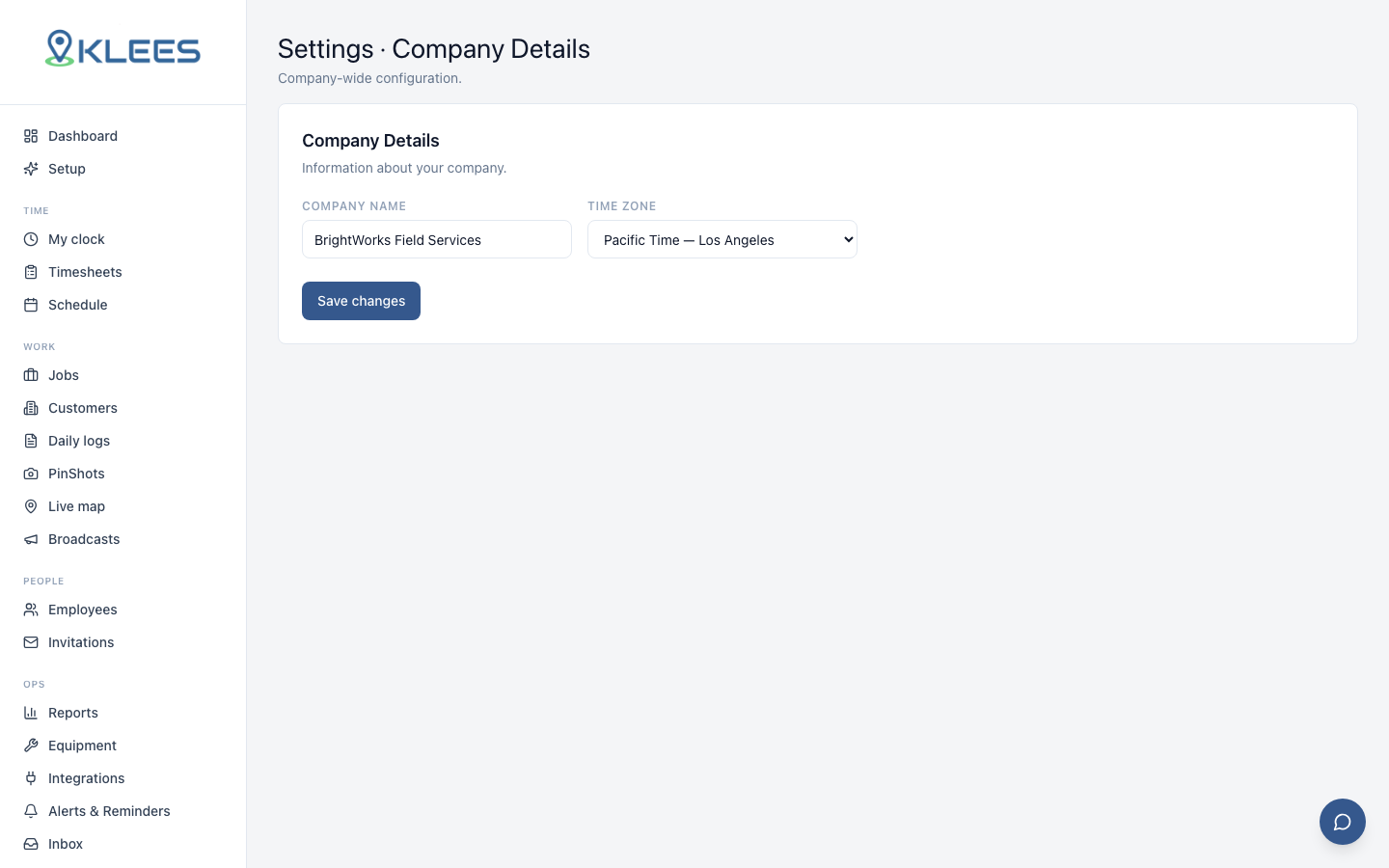
Set your company’s timezone in Settings → Company. Once set, every timestamp in Klees displays in company time — timesheets, reports, exports, alerts — no matter where the server or the viewer’s browser sits. Multi-state teams stop doing timezone math on payroll.
Note
Exported PDFs and the daily emails also use company time, so the numbers your accountant sees match the screen.
Per-job override
A job in another state can override the company zone — see Jobs. A shift is always filed on the day it started, in whichever zone applies.
Daily red-flags email
Every morning at 7am company time, managers and owners get an email digest of the previous day’s red flags — overtime, missed clock-outs, no-shows, GPS anomalies — grouped by employee with severity markers, and a one-click link to the timesheets. Empty days send nothing.
Recipients: everyone with the Owner, Admin, or Manager role. It’s the “what needs my attention today” email — most managers work directly off it.
Audit flags
Display audit flags to employees — off by default.
Leave it off and the nightly Audit Intelligence findings stay with managers and admins. Switch it on and each person sees the flags on their own day, in the web timesheet and in the app. Nobody sees anyone else’s.
Worth thinking about before enabling: the wording is written for a reviewer, so a line like “location missing for parts of shift” can read as an accusation without a manager’s context. Teams that value transparency turn it on so people fix their own missed lunches; teams that don’t, leave it off.
Notifications
Settings → Notifications (and per-manager rules) control who’s told about what: employee clock-ins/outs, alerts, approvals. Clock-in/out notifications can be enabled or disabled by managers per employee, so you hear about the crews you’re watching without noise from everyone else.
Overtime rules
Pick Federal, California, or custom rules; per-person overrides live on the employee’s GPS & Time tab (max hours/day, overtime thresholds). Rules apply at approval time and drive the OT alerts.
Time-off policies
Define PTO policies under Settings → Time Off; requests and balances are covered in Time Off and PTO.
Branding
Upload your logo for the customer-facing surfaces (customer portal, some emails). The Klees logo remains on report exports.
Billing
Admin only
Billing is visible to owners and admins only.Settings → Billing shows your plan, seats, invoices, and payment method, powered by Stripe. Seats count active workers who logged time in the month — inactive people don’t bill.