
Roles & access
How Klees roles decide what each person can see and do — employees, supervisors, managers, admins, owners, and custom roles.
Updated July 26, 2026
Every person in Klees has a role. The role decides which pages they see, whose time they can edit, and which company settings they can change. Getting roles right up front keeps your data clean and your crew focused on the two buttons they actually need — Clock In and Clock Out.
The built-in roles
| Role | Scope | Can approve time | Company settings |
|---|---|---|---|
| Employee | Themselves | — | — |
| Supervisor | Their assigned team | Team only | — |
| Manager | Their team + reports | Team only | Limited |
| Admin | Whole company | Everyone | Yes |
| Owner | Whole company | Everyone (incl. self) | Yes |
Note
Only the Owner can edit their own timesheet. Supervisors, managers, and admins can approve and edit other people’s time, but not their own — this keeps a clean separation of duties. See Self-edit restrictions.
Where you set a role
Admin only
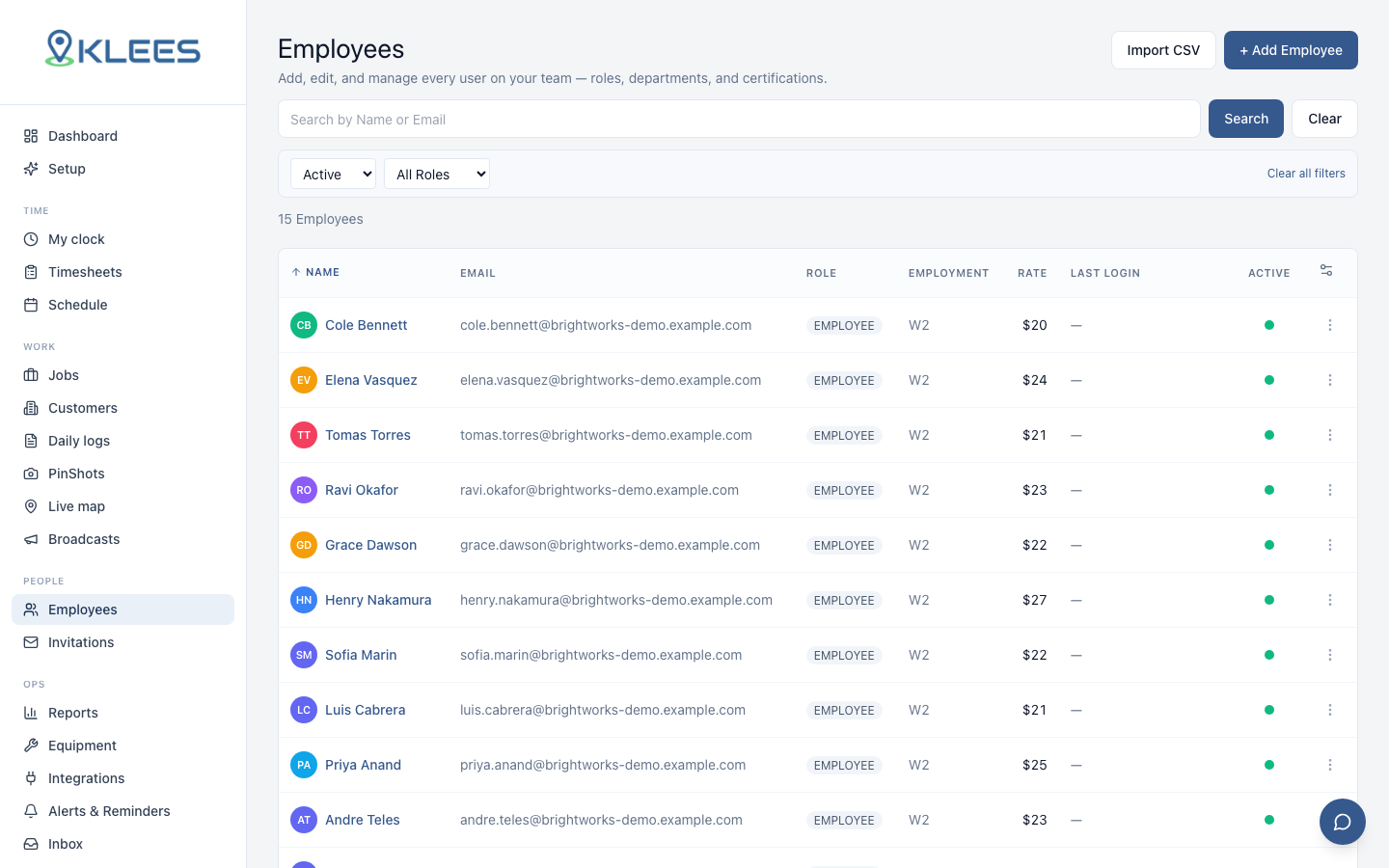
Changing roles is limited to owners and company admins.- Open People in the admin sidebar.
- Click a person to open their profile.
- Go to the Permissions tab.
- Pick a role, or assign a custom role (below).
- Save — the change takes effect on their next screen load.
Custom roles
The built-in roles cover most companies, but you can build custom roles when you need finer control — for example, a “Payroll Clerk” who can see reports and approve time but can’t change jobs or billing.
- Go to Settings → Roles (or Permissions).
- Click New role, name it, and pick exactly which features it can view or edit.
- Assign it to people from their Permissions tab.
Tip
Custom roles are additive and precise — grant only the features a person needs. A role with the Admin capability can act across the whole company, so reserve it for people who genuinely run operations.
What each role sees in the app vs the dashboard
- Employees only ever see the mobile app — the clock screen, their hours, and their profile. They have no dashboard access.
- Supervisors and managers use the app in the field and the dashboard to approve and report.
- Admins and owners live mostly in the dashboard.
Next: invite your team and get everyone their role.