What is Klees
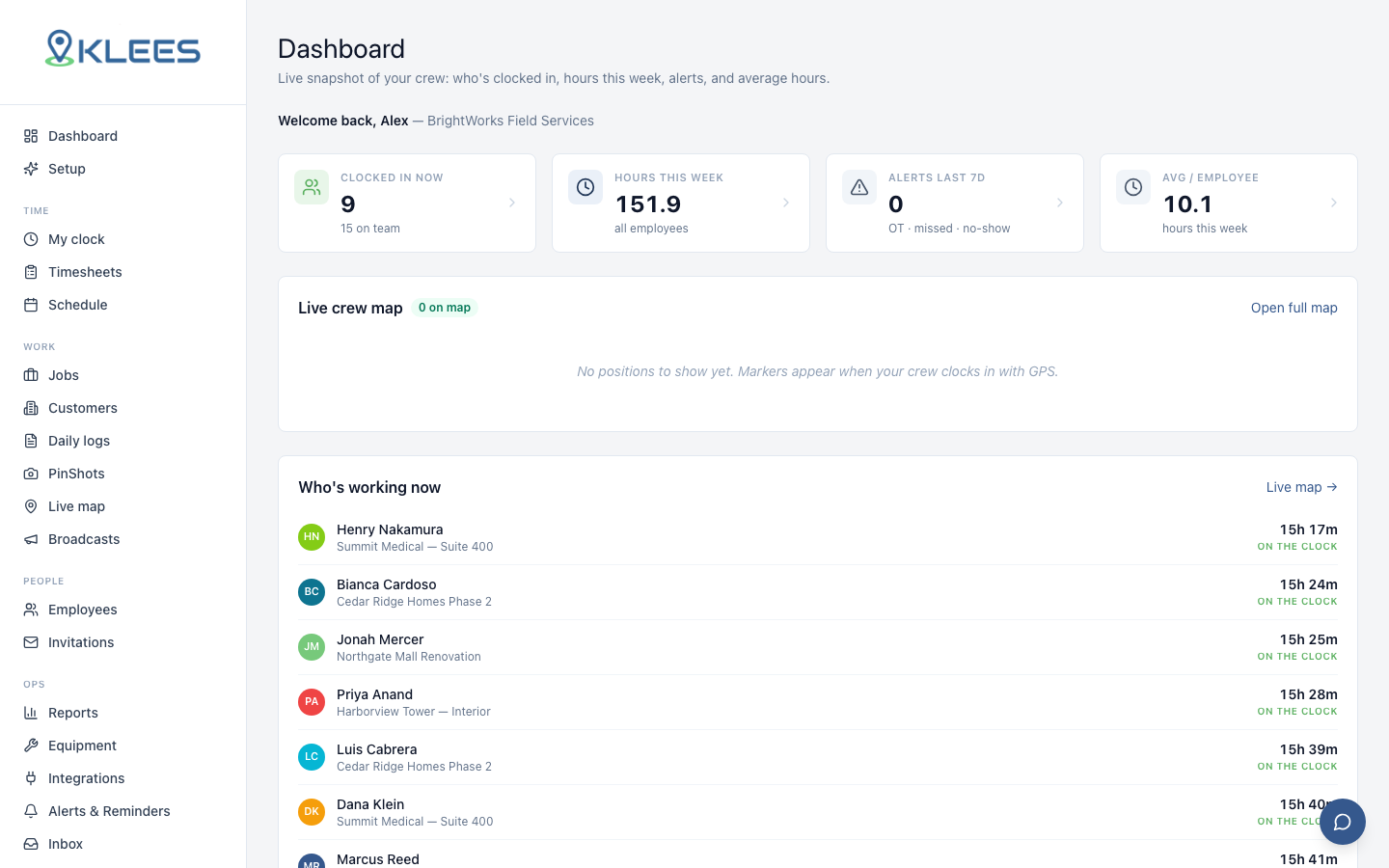
How Klees fits together — the mobile app your crew uses in the field and the admin dashboard managers use to run the company.
Updated July 26, 2026
Klees is GPS time tracking and field operations for teams that work out in the field — construction, cleaning, landscaping, security, HVAC, delivery, and more. Your crew clocks in from their phone; you see hours, job-site locations, and photos in real time, then send the week straight to payroll.
There are two surfaces, and this documentation covers both:
- The mobile app — what your crew (and foremen) use in the field to clock in and out, take breaks, attach photos, and submit daily logs.
- The admin dashboard — the web app at klees.app/admin where owners and managers set up jobs, review and approve timesheets, run reports, and manage the company.
Who does what
Every person in Klees has a role that decides what they can see and do. Roles are covered in detail in Roles & access, but at a glance:
| Role | Uses | Typical tasks |
|---|---|---|
| Employee | Mobile app | Clock in/out, breaks, photos, daily logs, view own hours |
| Manager / Supervisor | App + admin | Approve timesheets, manage a team, run reports |
| Company Admin | Admin dashboard | Jobs, people, billing, integrations, company settings |
| Owner | Everything | Full control, including their own timesheet edits |
Note
Klees is multi-company aware. Everything you do in the dashboard is scoped to your company — you only ever see your own jobs, people, and time.
The flow of a day
- A crew member opens the app and taps Clock In — Klees captures GPS and (optionally) a PinShot selfie.
- They work, take breaks and lunch, and attach photos or notes as needed.
- They tap Clock Out — the entry lands in the manager’s Pending queue.
- A manager reviews the day on the Timesheets page, fixes anything flagged, and approves.
- Approved hours flow into Reports and your payroll integration.
Each of those steps has its own page in this guide. New here? Start with the Quickstart to get your company set up, then invite your team.
How to use these docs
- Getting Started gets your company live.
- Feature sections (Time Tracking, Jobs, Reports, …) explain each part of the product with step-by-step instructions and screenshots.
- Pages marked cover tasks limited to owners and company admins.
Admin only
Admin only - The Reference section covers the API, security, and languages.