
Reviewing & approving timesheets
The weekly timesheet grid — review every clocked entry, add or fix time, apply quick lunch deductions, and approve days for payroll.
Updated August 2, 2026
The Timesheets page is where a manager’s week lives: every clocked entry across the crew, laid out by day, with totals that already exclude unpaid breaks and lunch. From here you review, fix, approve, and export.
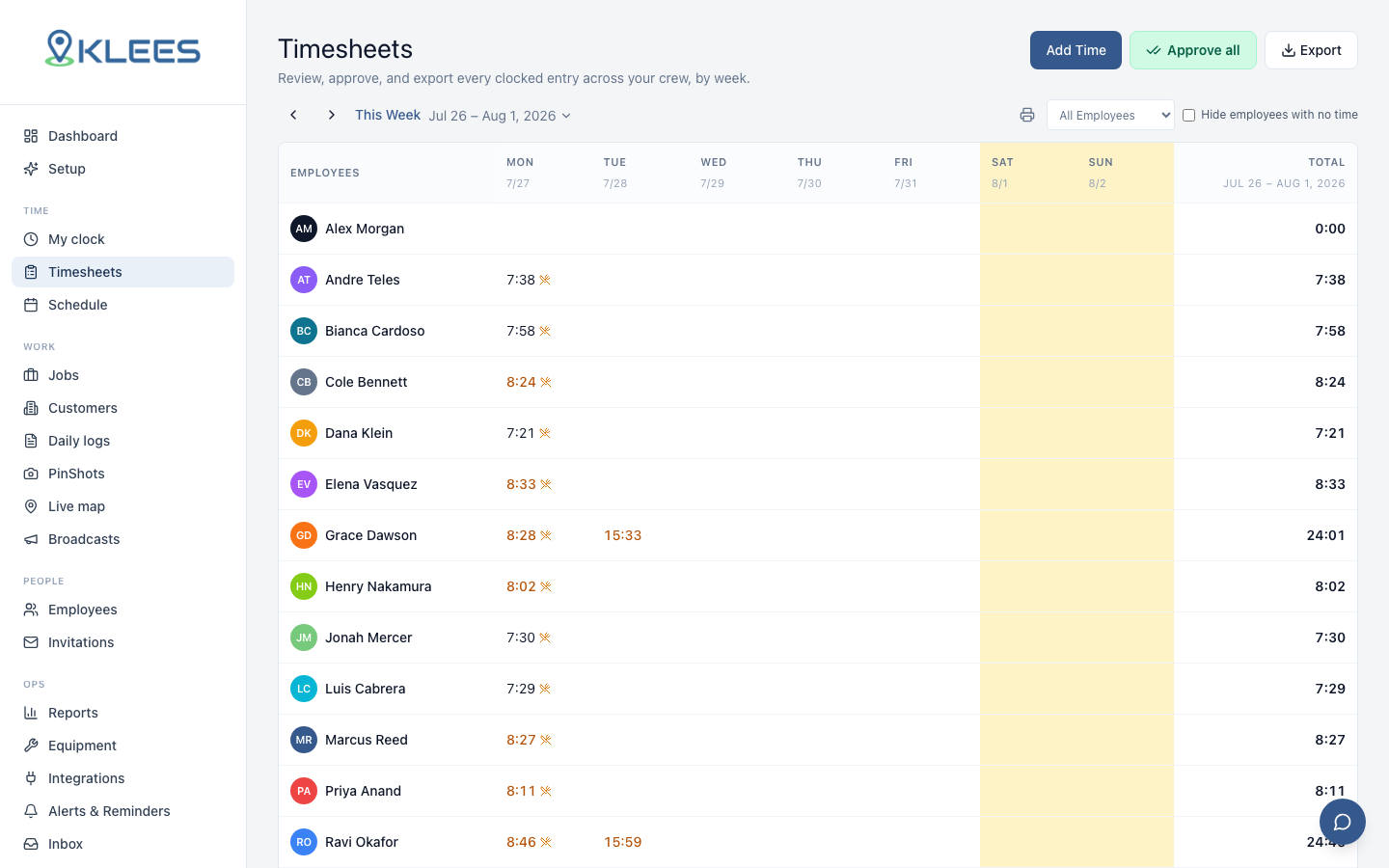
Reading the grid
- Rows are employees, columns are the days of the selected week.
- Each cell shows the hours worked that day. Icons flag things worth a look — alerts, missing clock-outs, offline replays.
- The Total column and bottom row give per-person and per-day sums.
- Use the week arrows or the date dropdown to move between weeks.
- All Employees filters to a team or person; Hide employees with no time collapses empty rows — and Klees remembers this preference per user.
Drilling into a day
Click any cell to open the day view for that person: every entry with clock-in/out times, breaks, GPS points on a map, alerts, notes, and any shift photos the worker attached. Photos appear as a grid with a count (“Clock-out photos (3)”) — click any one for full size. Workers can capture them throughout the shift, not only at clock-out, so expect several on a documentation-heavy job.
From the day view you can:
- Edit an entry — adjust clock-in/out times, the job, or breaks.
- Add a break or lunch — including the one-tap +30 min lunch and +1 hour lunch buttons for the common case where a crew forgot to log lunch.
- Approve the day, or approve everything with Approve all back on the grid.
- Watch the GPS path — the embedded map replays the worker’s route for the entry.
Who can edit whose time
Managers, admins, and supervisors can edit and approve other people’s time — never their own. Only the Owner can edit their own entries. Attempts are blocked server-side, and every change lands in the audit log. See Self-edit restrictions.
Adding time manually
Crew forgot to clock in entirely? Add the entry for them:
- Click Add Time (top right).
- Pick the person, job, date, and the clock-in/out times.
- Save — the entry is marked as manually added and shows in the audit trail.
Alerts on entries
Klees flags entries automatically — overtime, missed clock-outs, no-shows, offline punches synced late, GPS anomalies, and punches made through a VPN or proxy (which hide the worker’s real location — the alert names the VPN provider and where the traffic actually exited). Alerts show on the grid and in the day view; dismiss them once handled. The same alerts feed the Timesheet Alerts report and the daily red-flags email.
What a day cell tells you
Each cell shows the hours worked, plus small markers for anything else recorded that day:
- Lunch / break — whether the day includes either.
- Notes and photos — a count badge. Click it to read the shift notes and view the photos without leaving the grid.
- Miles — for people with mileage tracking on.
- Approved — green, once the day is signed off.
- Out of zone — the worker clocked in or out away from the job’s geofence.
Everything is in the day view too, where you also get the GPS path for the shift.
Which day a shift belongs to
A shift belongs to the day it started, in the company’s time zone. A crew member who clocks in Sunday at 11pm and out Monday at 7am has that whole shift counted on Sunday — it does not split at midnight or jump to Monday.
Jobs in another state can override the zone. See Jobs.
Approving for payroll
Approving locks the day: the entries stop being editable by the worker and count as payroll-ready. Approve per-day in the drill view, or Approve all for the week once you’re done reviewing.
Who can approve is controlled in two places, and both must allow it: the person’s approval scope (People → the person → Manager Settings) decides whose time they may approve, and the Timesheets — approve time permission decides whether they may approve at all. If someone has no Approve button, one of those two is the reason. Approved hours flow into Reports and your payroll integration.
Tip
A fast weekly rhythm: Monday morning, open last week → sort out anything flagged → Approve all → Export. Most teams get review down to minutes once alerts are tuned.