
Inviting your team
Add employees to Klees by email invite, resend invitations, track who's pending, and get your crew onto the mobile app.
Updated July 26, 2026
Your crew needs accounts before they can clock in. Klees invites people by email — they tap the link, set a password, and download the app. This page covers sending invites, resending them, and tracking who hasn’t joined yet.
Send an invite
Admin only
Inviting people is limited to owners, admins, and managers.- Open People in the admin sidebar.
- Click + New (or Invite) and choose Employee.
- Enter their name, email, role, and (optionally) the job they’ll be assigned to.
- Click Send invite — Klees emails them a branded invitation with a join link.
New employees are automatically assigned to your company’s General job so they can clock in on day one even before you assign specific jobs.
Pending invitations
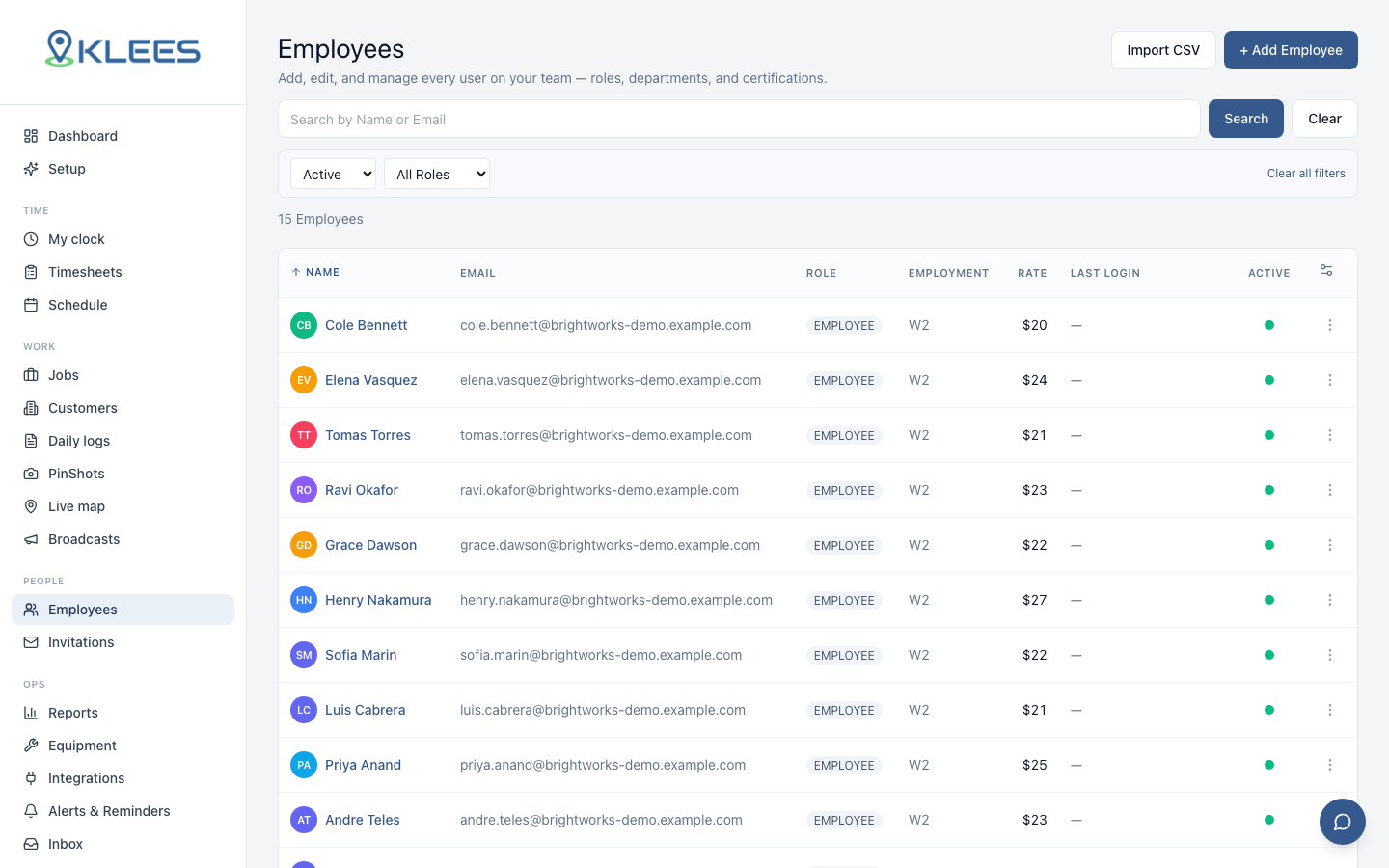
Invited people who haven’t joined yet appear in a Pending invitations list on the People page. You can hide or show the list with the collapse link, and it’s scoped to your company.
Resend an invitation
If someone lost the email or it landed after a delivery issue, resend it:
- Find them in Pending invitations.
- Click Resend.
Note
Resending always sends the email again, even when an invite is already pending. You’ll see “an invite is already pending for this email” — that’s expected, and the message still goes out.
What the employee does
- They open the invitation email and tap Accept invite.
- They set a password.
- They install the Klees app (see Installing the app) and sign in.
- Their assigned jobs appear on the clock screen, ready to go.
Tip
Doing a big onboarding? Invite everyone first, then walk the crew through installing the app together — most people are clocked in within their first shift.