
Daily logs & clock-out photos
Shift notes and photo documentation from the field — how workers attach daily logs and multiple photos at clock-out, and where managers see them.
Updated July 26, 2026
Words and pictures from the job site, captured at the moment that matters — clock-out. Daily logs describe the work done; photos prove it. Both attach to the time entry and the job.
Daily logs (shift notes)
When a worker clocks out, they can type a short log of what was done on the shift. Two modes, chosen by the worker’s own toggle on the clock screen:
- Optional — a “Add a daily log?” prompt they can skip.
- Required — the Require notes on clock out toggle makes the note mandatory; clock-out won’t complete without it.
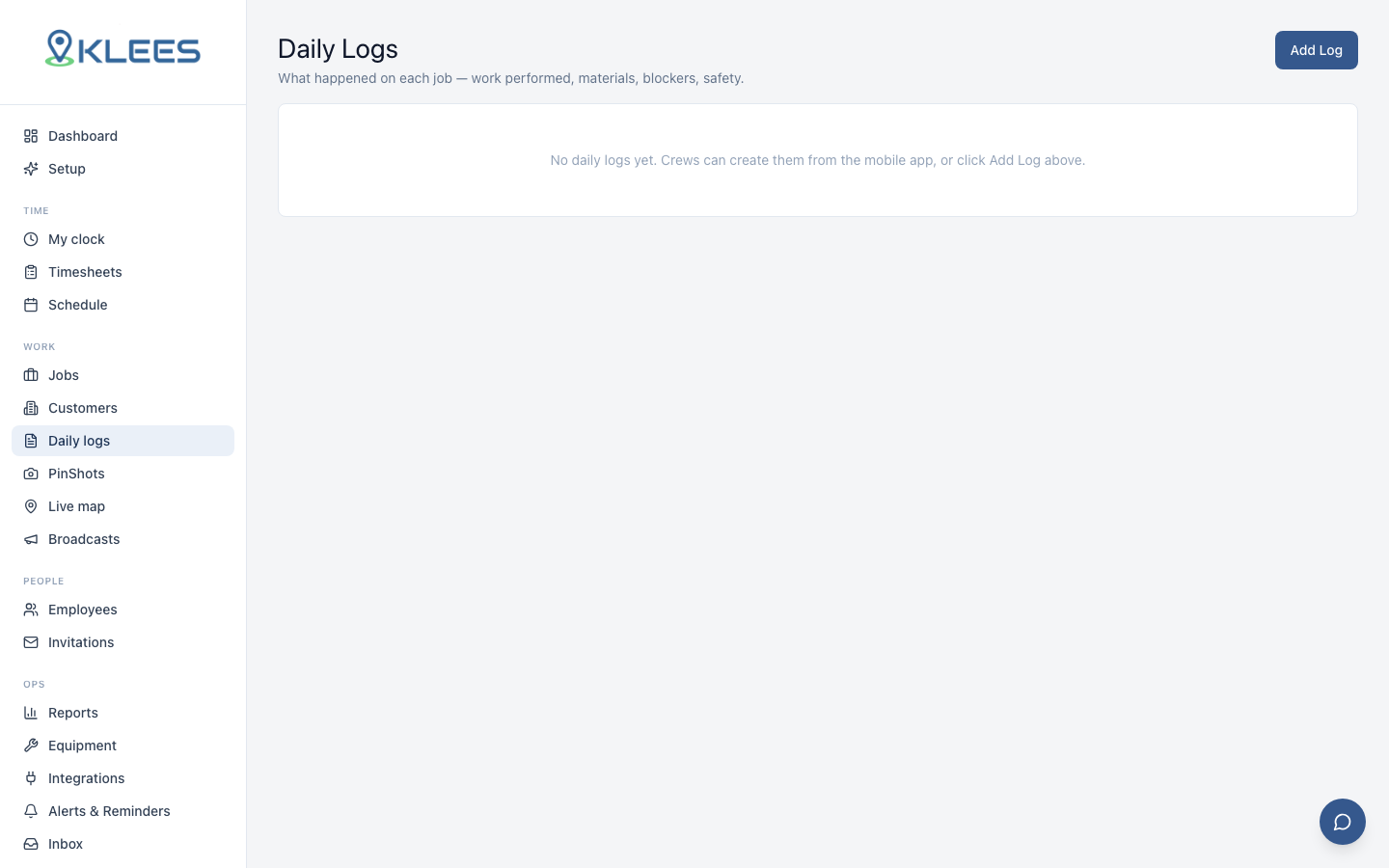
Logs land on the time entry (visible in the timesheet day view) and on the Daily logs page, grouped by job.
Shift photos — capture as you work, not just at clock-out
While clocked in, a Shift photos grid sits right below the clock-out button. Snap photos at any point in the shift — finished rooms, site conditions, deliveries — and they stage as thumbnails (tap ✕ to remove any). Photos upload as you take them, and the staged set survives closing the app mid-shift.
When you clock out, everything staged goes with the punch automatically. Nothing staged and Photo on clock out enabled? The photo tray opens so you can add photos right then:
- Tap the camera tile to take a photo (or pick from the library).
- Repeat as needed; remove any with ✕.
- Tap Clock out (or Continue, when notes are also required).
Shift notes — write as you go
A Shift notes box lives next to the photo grid. Jot notes whenever something happens — the text is kept (even across app restarts) and sent with your clock-out. If your Require notes toggle is on, the clock-out notes screen opens prefilled with what you wrote, ready to finish and send.
All photos upload to secure storage and attach to the entry. Managers see the full set in the timesheet day view — “Clock-out photos (3)” with every image clickable to full size.
Note
Photos upload before the punch completes. On a weak connection the app clocks the worker out anyway rather than stranding them, and tells them if a photo didn’t make it.
Tip
Cleaning and field-service teams: make end-of-shift photos a policy. Disputes about “was it done?” end the moment there’s a timestamped, GPS-anchored photo set on the entry.